
MY ROLE
MY ROLE
Product Strategy
User Research
User Experience
Usability Testing
Product Strategy
User Research
User Experience
Usability Testing
Product Strategy
User Research
User Experience
Usability Testing
TIMELINE & STATUS
TIMELINE & STATUS
3 months
3 months
3 months
Team Members
Team Members
Tanushree Gupta, Design Lead
Prabhat Aryan , UX Lead
Harshita Yadav, UX Designer
Tanushree Gupta, Design Lead
Prabhat Aryan , UX Lead
Harshita Yadav, UX Designer
Tanushree Gupta, Design Lead
Prabhat Aryan , UX Lead
Harshita Yadav, UX Designer
OVERVIEW
OVERVIEW
Twinn Space Studio is a system of software's which would be one stop solution for interior designers with an end-to-end project management and execution solution.
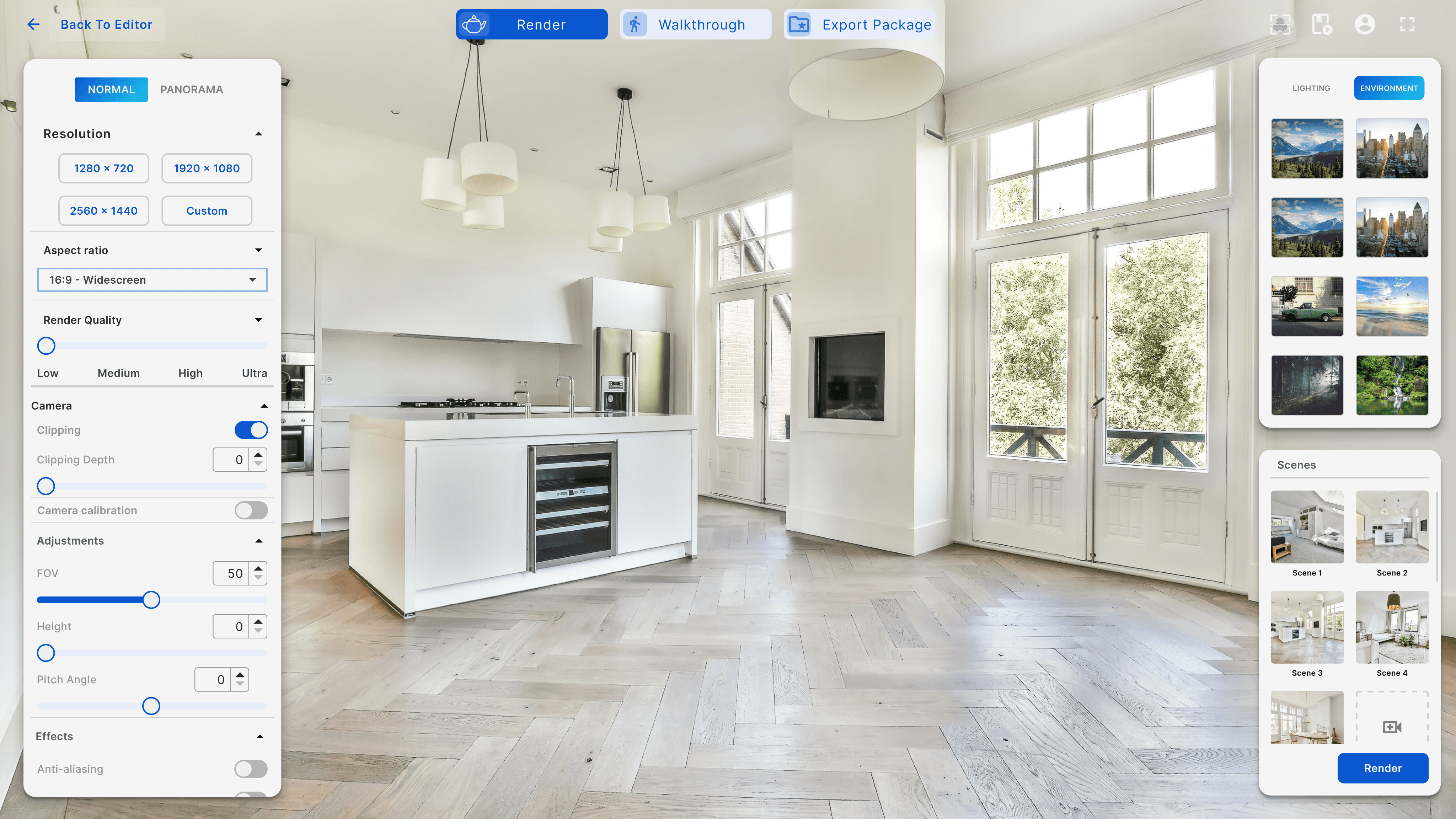
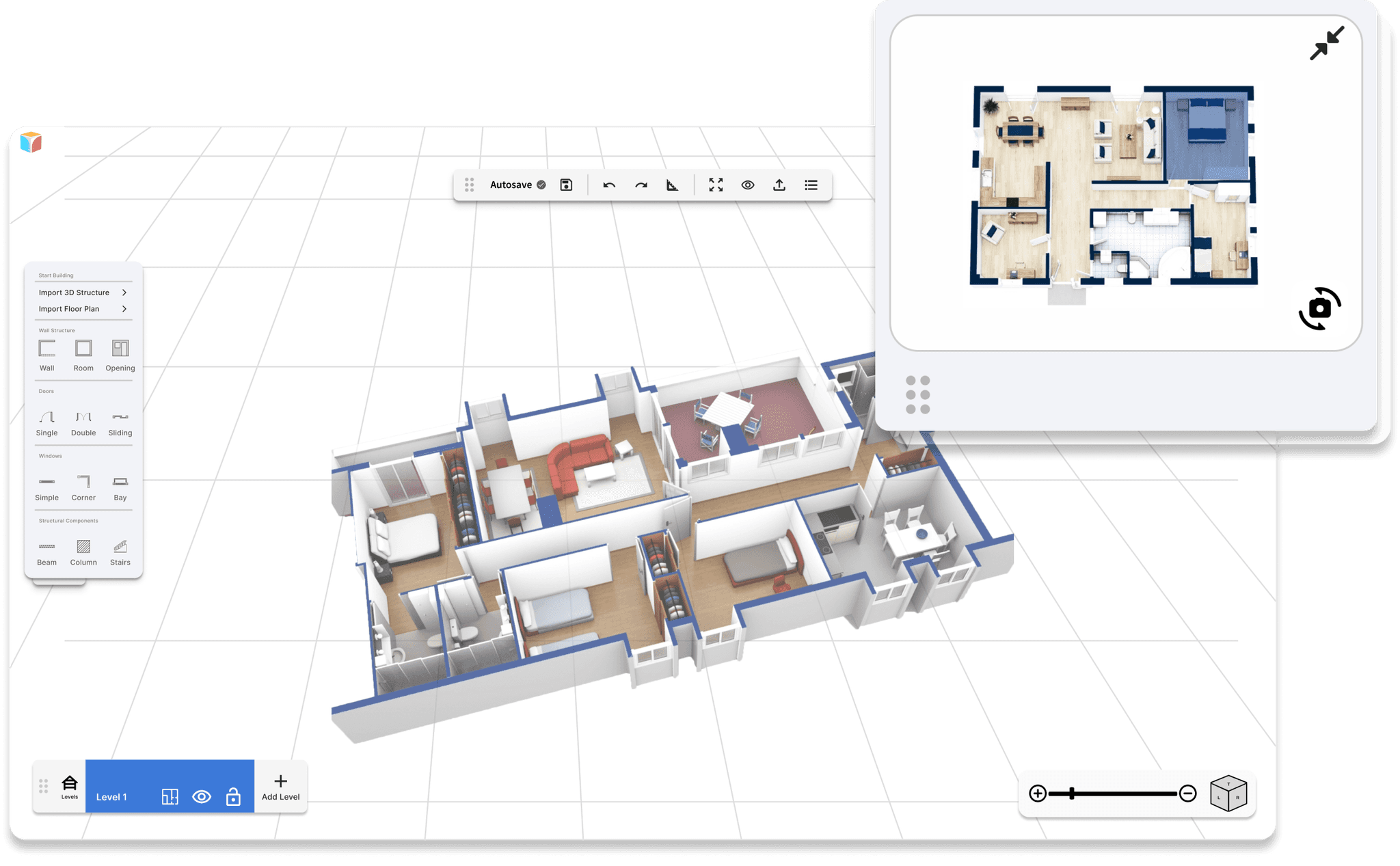
Twinn Create, part of the Twinn Space Studio suite, streamlines design work by transforming 2D plans into 3D models and photorealistic renders, significantly reducing the design process time.
In my role, I spearheaded the optimization of Twinn Create's user experience, focusing on enhancing the rendering feature and streamlining the application. My efforts in cleanup and redesign effectively identified and resolved key bugs and inconsistencies.
Twinn Create, part of the Twinn Space Studio suite, streamlines design work by transforming 2D plans into 3D models and photorealistic renders, significantly reducing the design process time.
In my role, I spearheaded the optimization of Twinn Create's user experience, focusing on enhancing the rendering feature and streamlining the application. My efforts in cleanup and redesign effectively identified and resolved key bugs and inconsistencies.
What is Twinn Space
Studio?
What is Twinn Space
Studio?
Twinn - A compelling software suite revolutionizing interior design workflows, enabling project completion up to 70% faster.
Its an integrated software platform tailored for interior designers, providing features such as resource databases, collaborative functionalities, AR and VR support, project coordination, task and client handling, stock control, and invoice processing.
TWINN HQ
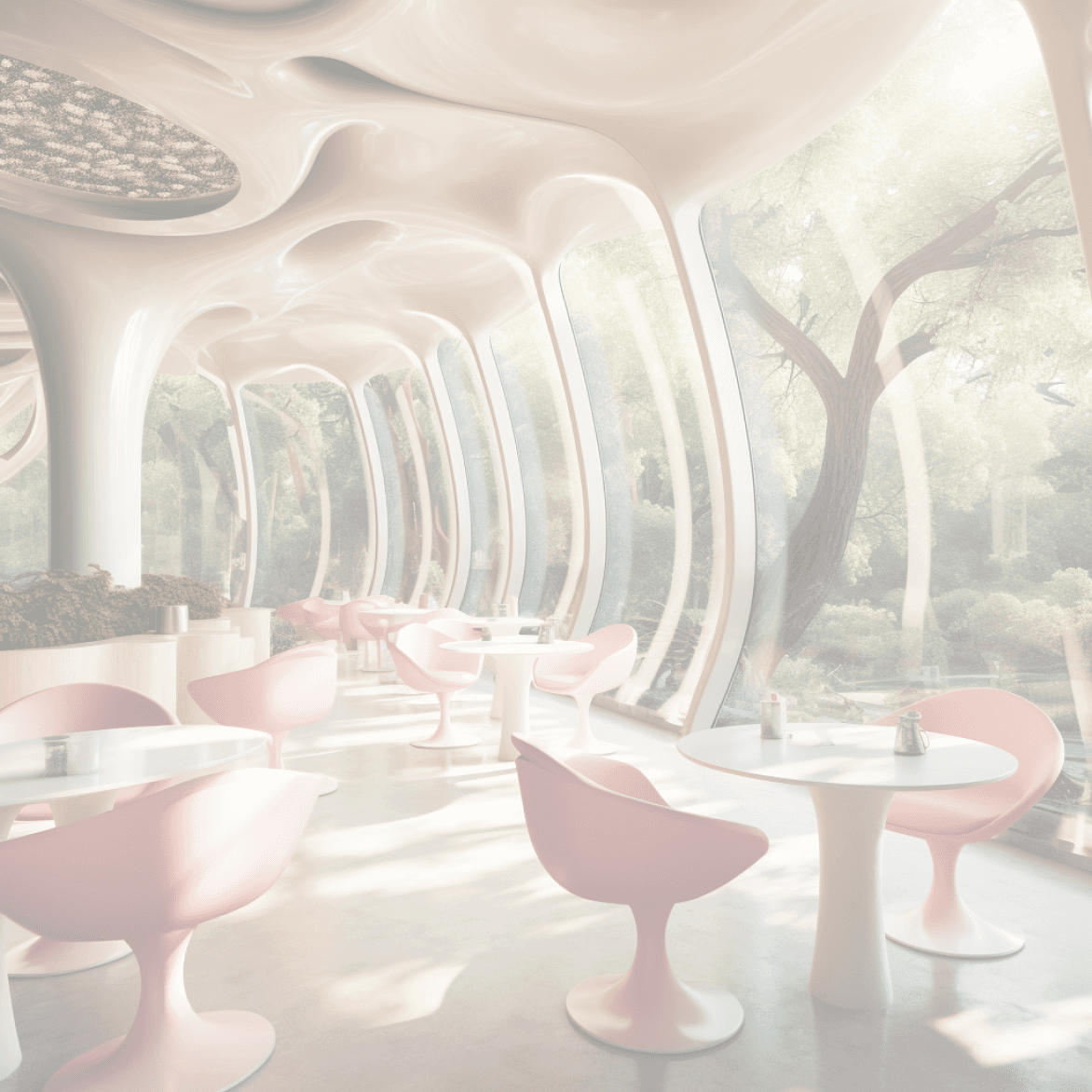
TWINN CREATE
Creating 3D Designs, Precise Spatial
Planning and Photorealistic renders
TWINN CAPTURE

TWINN HQ
TWINN CREATE
Creating 3D Designs, Precise Spatial
Planning and Photorealistic renders
TWINN CAPTURE

TWINN HQ
TWINN CREATE
Creating 3D Designs, Precise Spatial
Planning and Photorealistic renders
TWINN CAPTURE
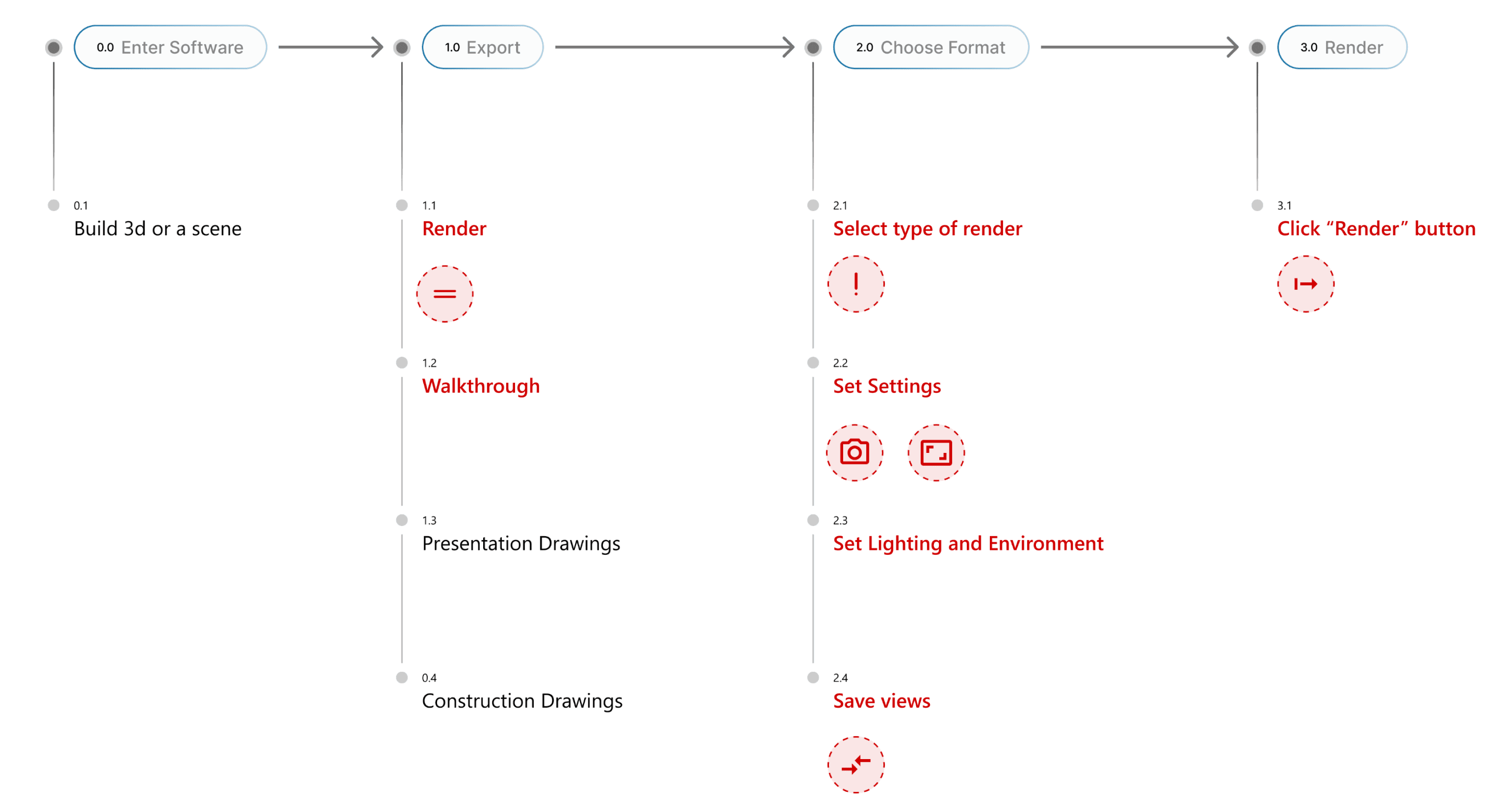
Intial Problem Discovery
What problem am I trying to solve?
“Optimizing the rendering user flow in Twinn Create”


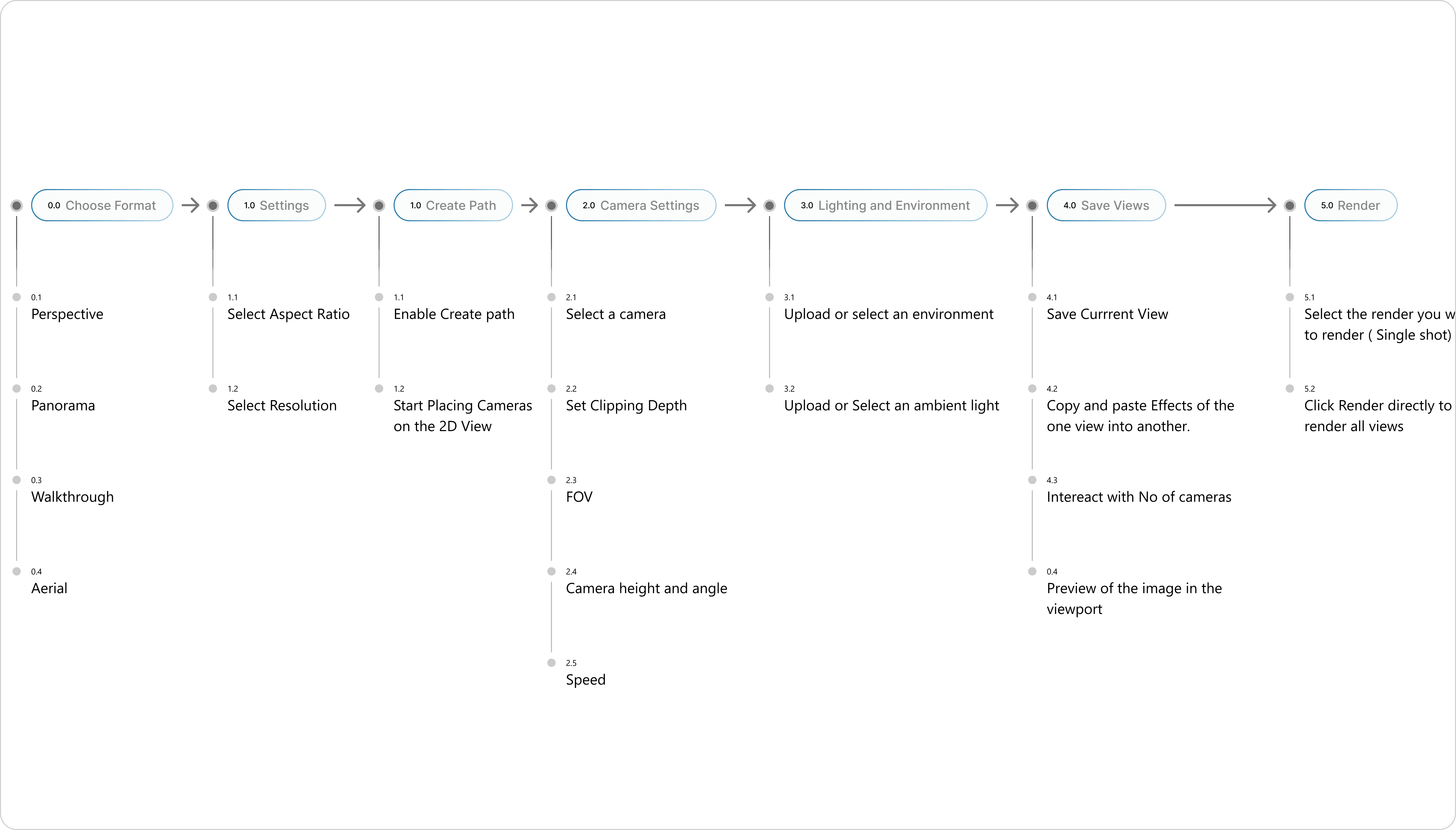
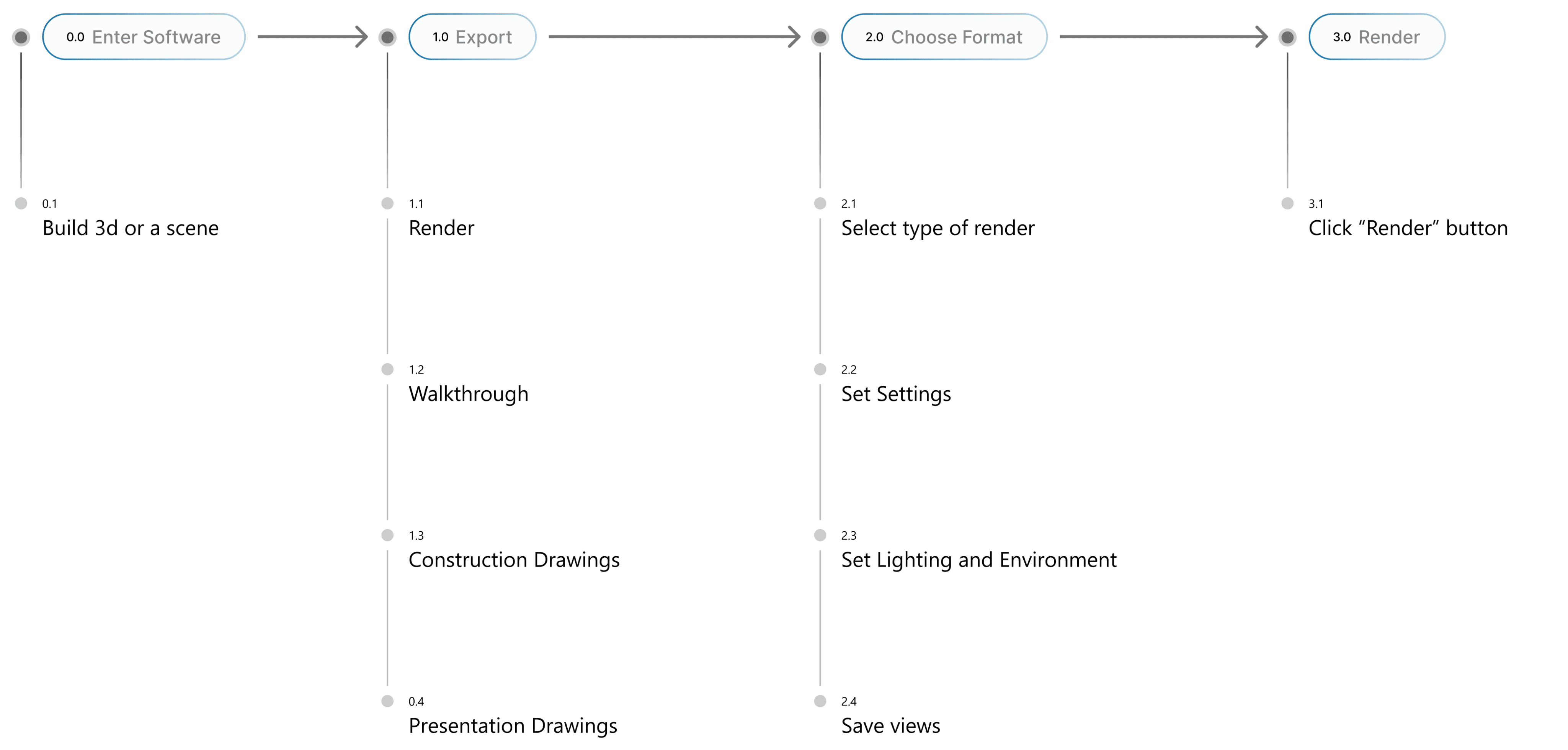
THE CURRENT FLOW
THE CURRENT FLOW
THE CURRENT FLOW
What is happening...
Its a start....
Its a start....
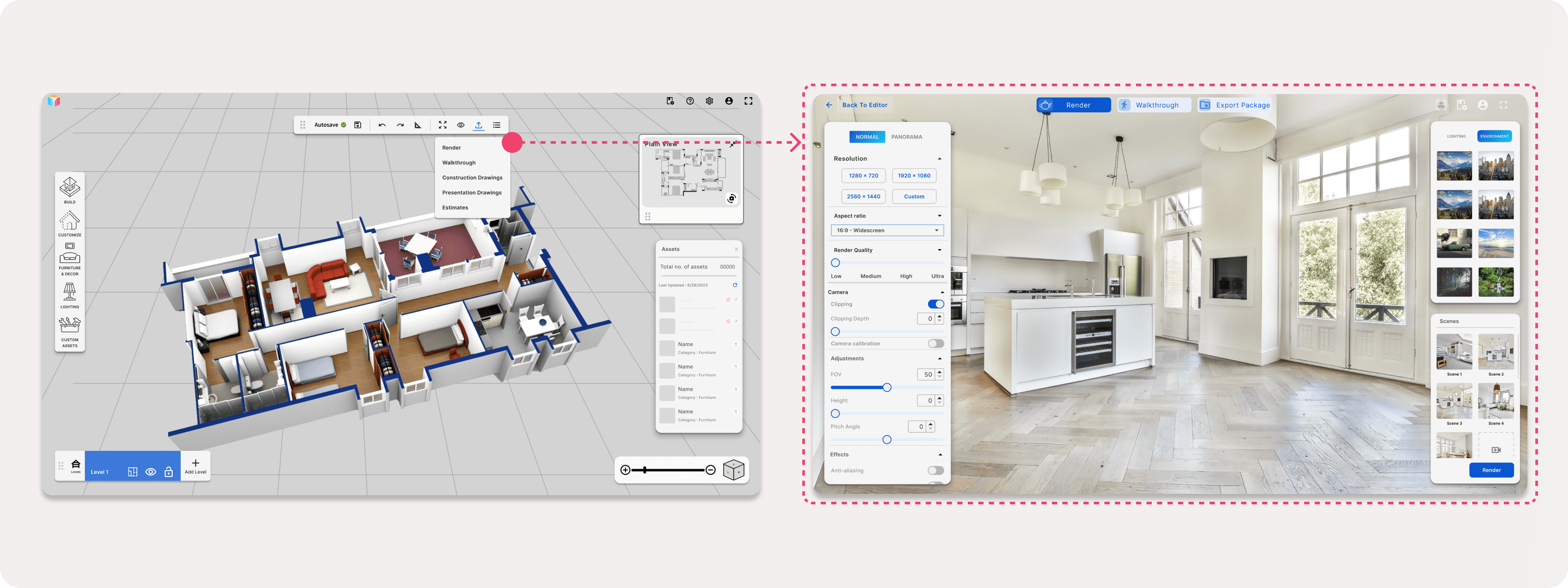
To initiate the redesign, I analyzed the existing user flows for both the rendering and walkthrough features. Given that these journeys are distinct, it's imperative to identify and comprehend the unique pain points within each.


Current screens
Current screens
IMAGE
IMAGE
Understanding Target Audience
Who we are trying to solve this for?
“Anybody who wants to design their interiors”
The users are -
Interior designers
3D Artists
Common people
Intial Research / Problem Validation
Why is this problem important?
“Turns out, users are experiencing friction in the rendering workflow with TWINN Software, impacting their ability to complete processes seamlessly.”
"There are so many options and no clear guidance on the render screen what to do first. It makes it hard for me to get into the flow of designing because I spend too much time just trying to figure out where to begin "
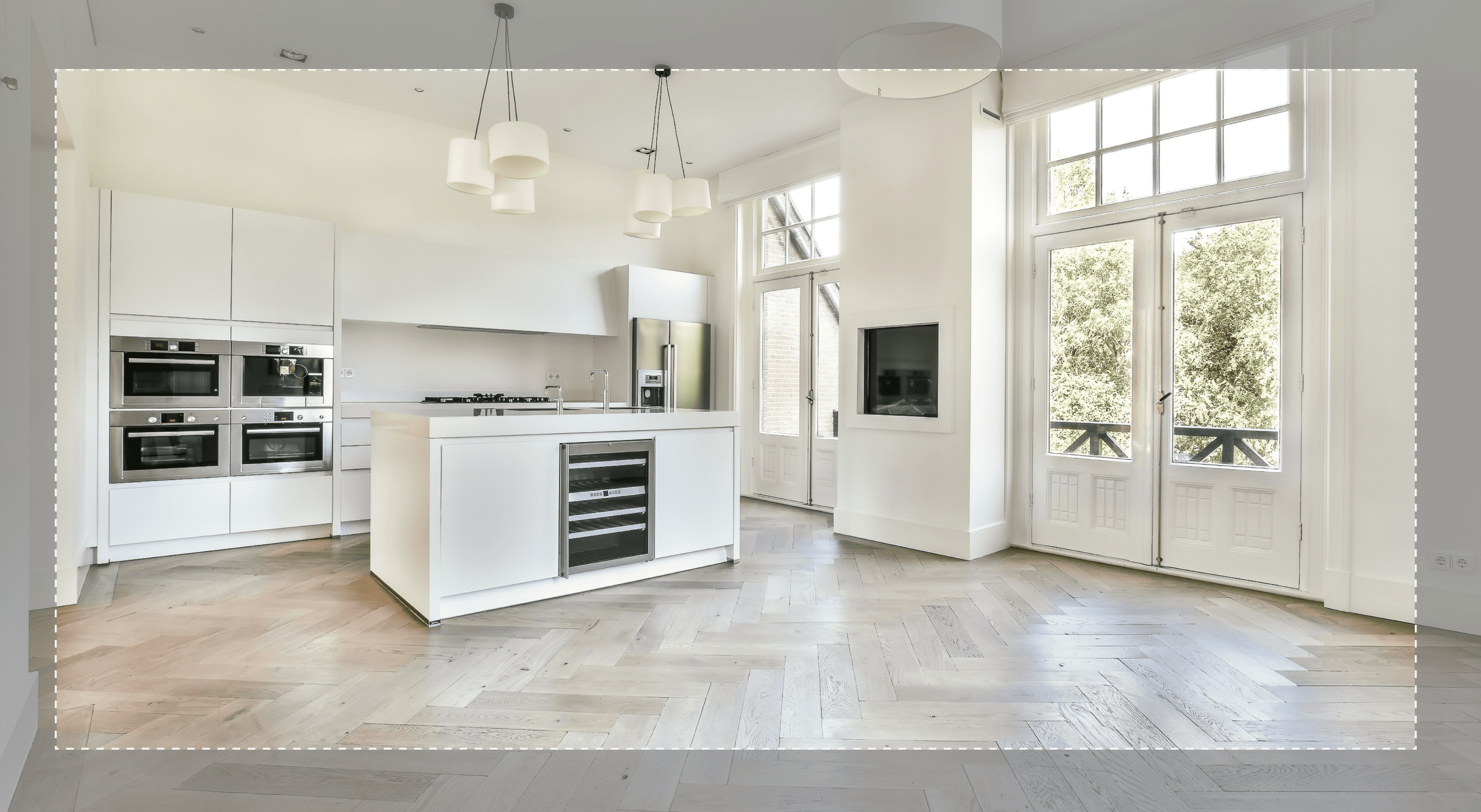
"When selecting the aspect ratio, I'm unable to preview exactly what will appear in my final render."
THE PROBLEM STATEMENT
To optimize the rendering user flow in Twinn Create, with the aim of significantly elevating user satisfaction and operational efficiency.
A pile of constraints.
While we aim to improve the rendering user flow in Twinn Create, there are multiple constraints that present challenges in achieving this objective.
Deadline : An 8-week deadline imposes a tight time frame, restricting the scope of what can be accomplished and tested
User Constraint : Given that the product is not publicly released, testing is confined to in-house users who may not represent the full spectrum of potential users.
Hardware : The rendering performance might also be dependent on the end user's hardware, over which you have no control.
Finding structure amidst the chaos
(The Existing user Journey).
Finding structure amidst the chaos
(The Existing user Journey).
After examining the current rendering screens, I mapped out the user journey to discern the similarities and differences, which was crucial in pinpointing the pain points.


User Journey
User Journey
IMAGE
IMAGE
Unearthing User Hurdles
After examining the user flow and considering insights from user tests, I identified subtle discrepancies within the micro-interactions. These encompassed gaps in user stories, limited feature offerings, and moments that could lead to user confusion or cognitive strain.
Solutions


Pain Points
IMAGE
Visibility & Affordance: The button initiating the render journey lacks prominence.
Lack of clear confirmation or indication once the rendering process is complete; users need to know where to view the completed render.
Rendering and walkthrough direct users to disjointed interfaces, causing confusion.
Excessive on-screen elements lead to an overloaded user experience.
Predictability: Users struggle to anticipate the viewport's dimensions for the render's output.
No validation if action was performed successfully nor indication for progression

Pain Points
IMAGE
Visibility & Affordance: The button initiating the render journey lacks prominence.
Lack of clear confirmation or indication once the rendering process is complete; users need to know where to view the completed render.
Excessive on-screen elements lead to an overloaded user experience.
Predictability: Users struggle to anticipate the viewport's dimensions for the render's output.
No validation if action was performed successfully nor indication for progression
Solutions


Pain Points
IMAGE
Visibility & Affordance: The button initiating the render journey lacks prominence.
Lack of clear confirmation or indication once the rendering process is complete; users need to know where to view the completed render.
Rendering and walkthrough direct users to disjointed interfaces, causing confusion.
Excessive on-screen elements lead to an overloaded user experience.
Predictability: Users struggle to anticipate the viewport's dimensions for the render's output.
No validation if action was performed successfully nor indication for progression

THE CHALLENGE
Integrate diverse user journeys within rendering while maintaining uniform visual design, ensuring intuitiveness, and minimizing errors.
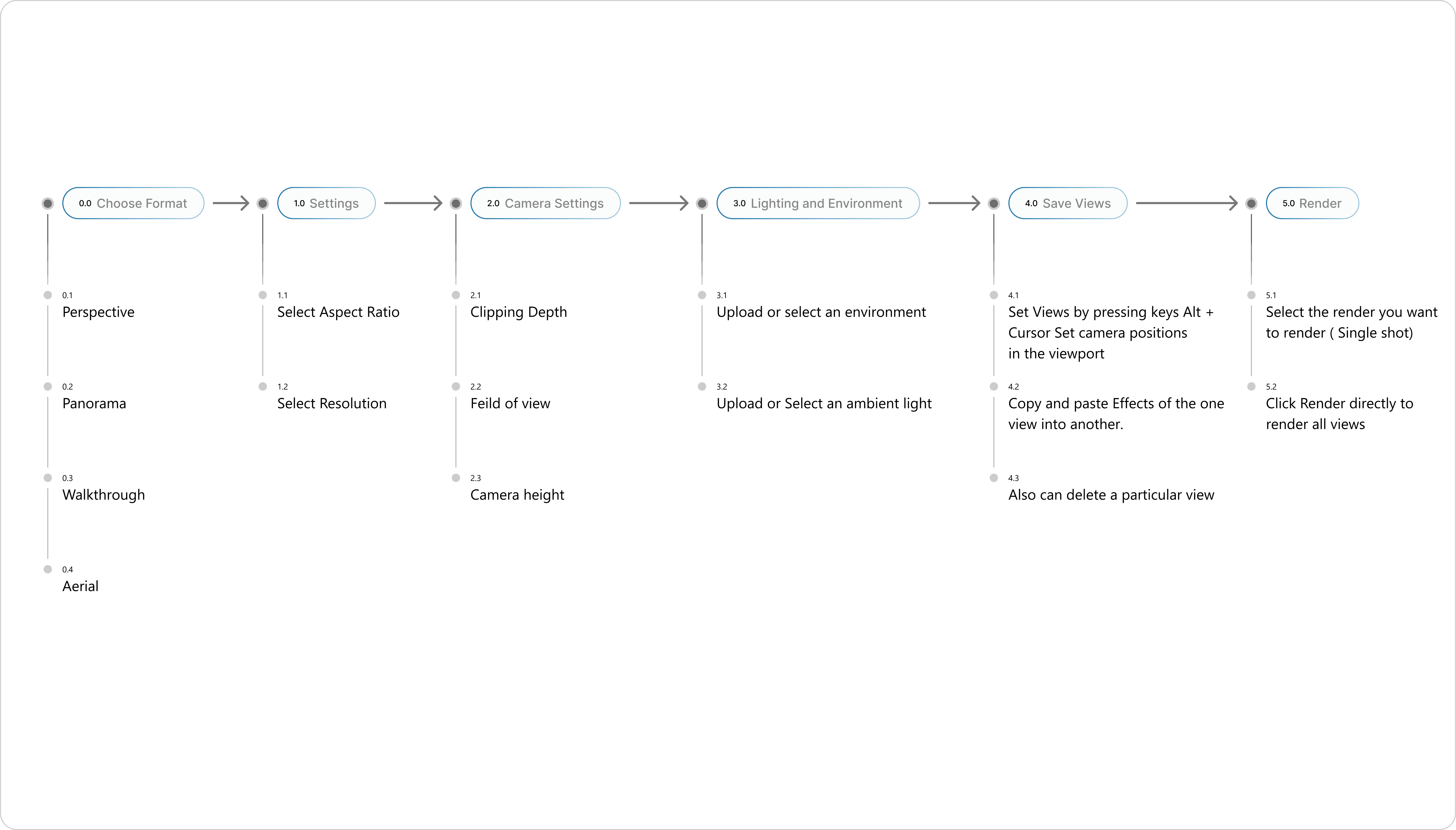
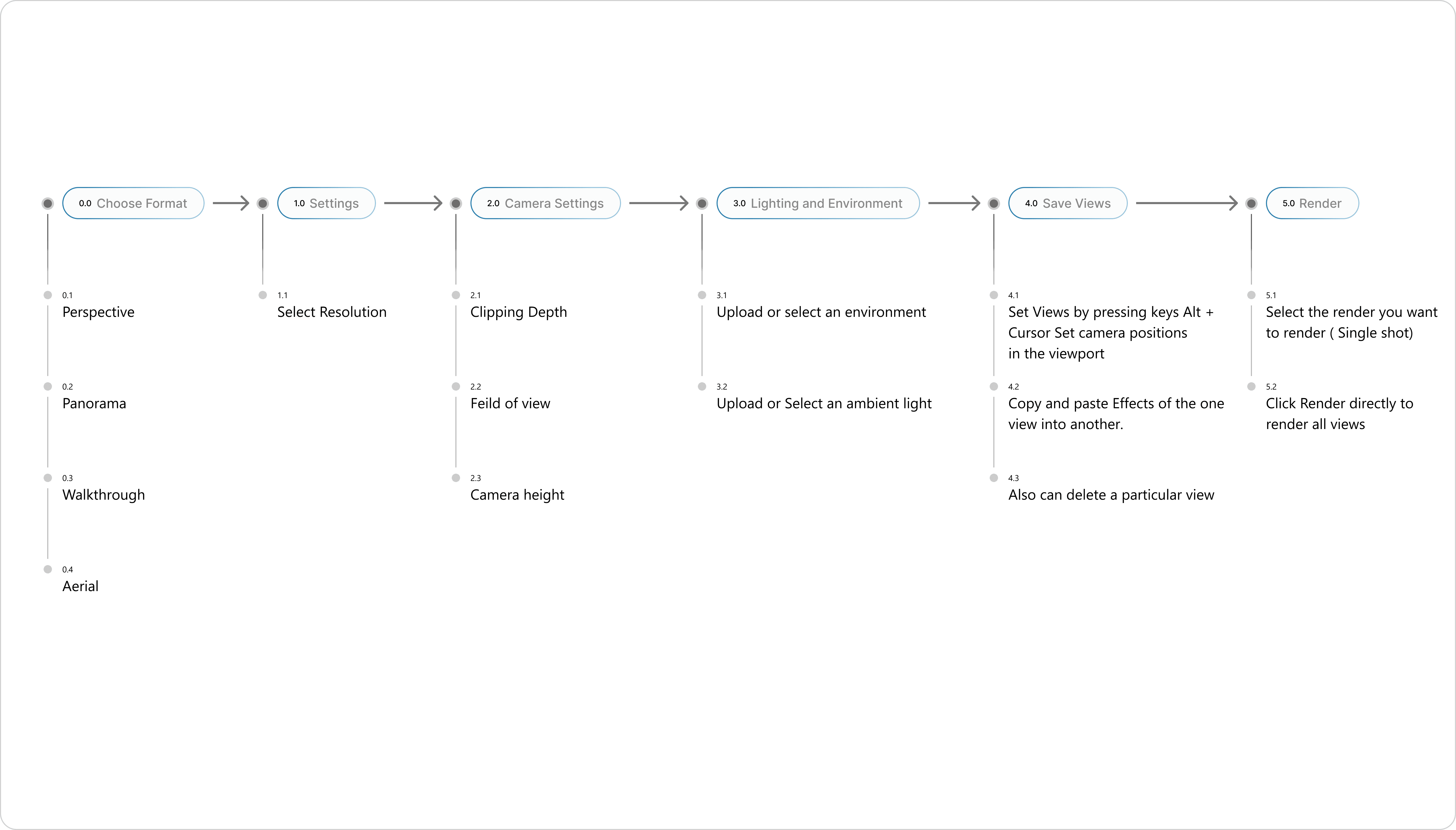
Different types of Renders


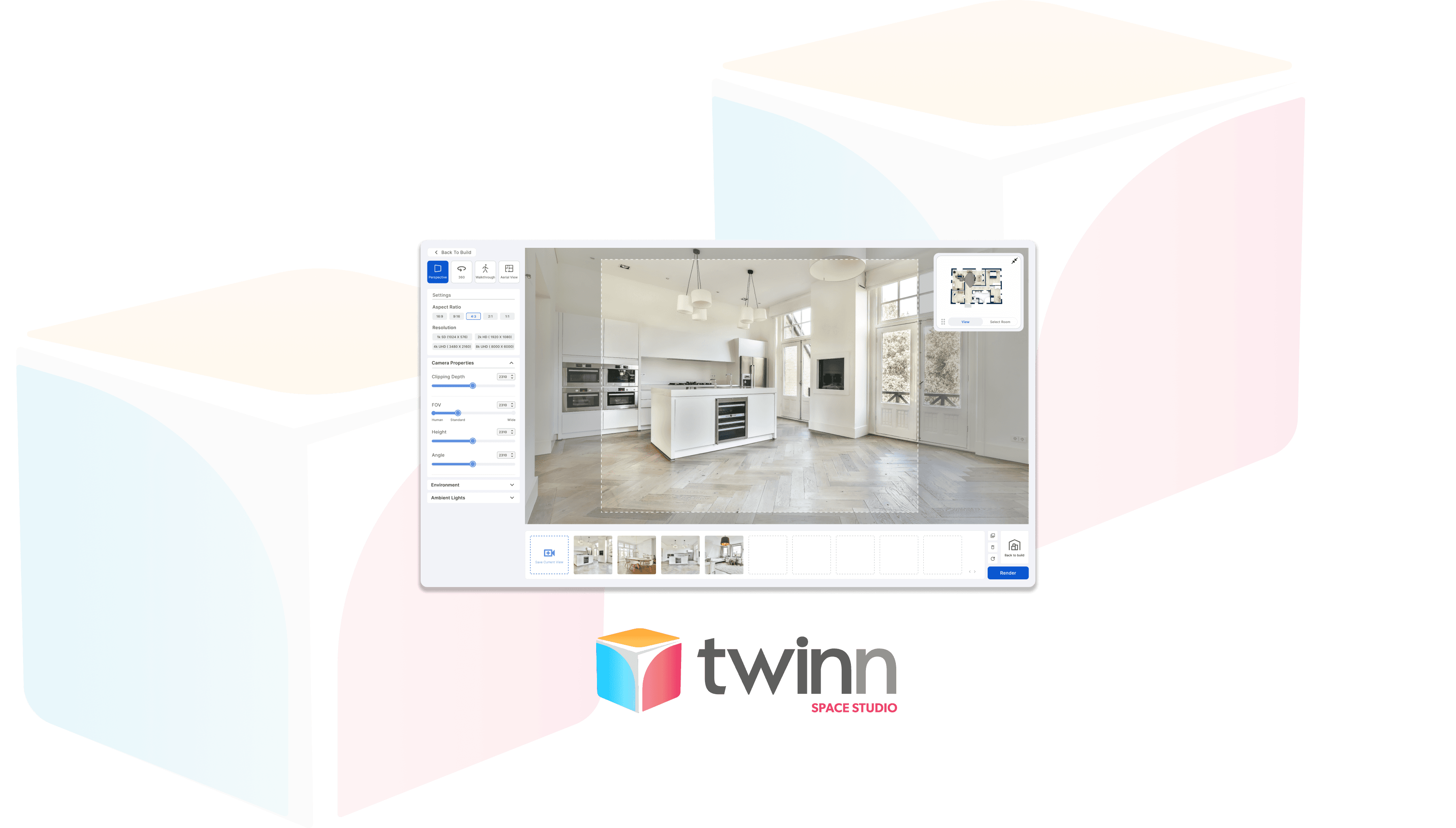
Perspective
Perspective


Panorama ( 360)
Panorama ( 360)


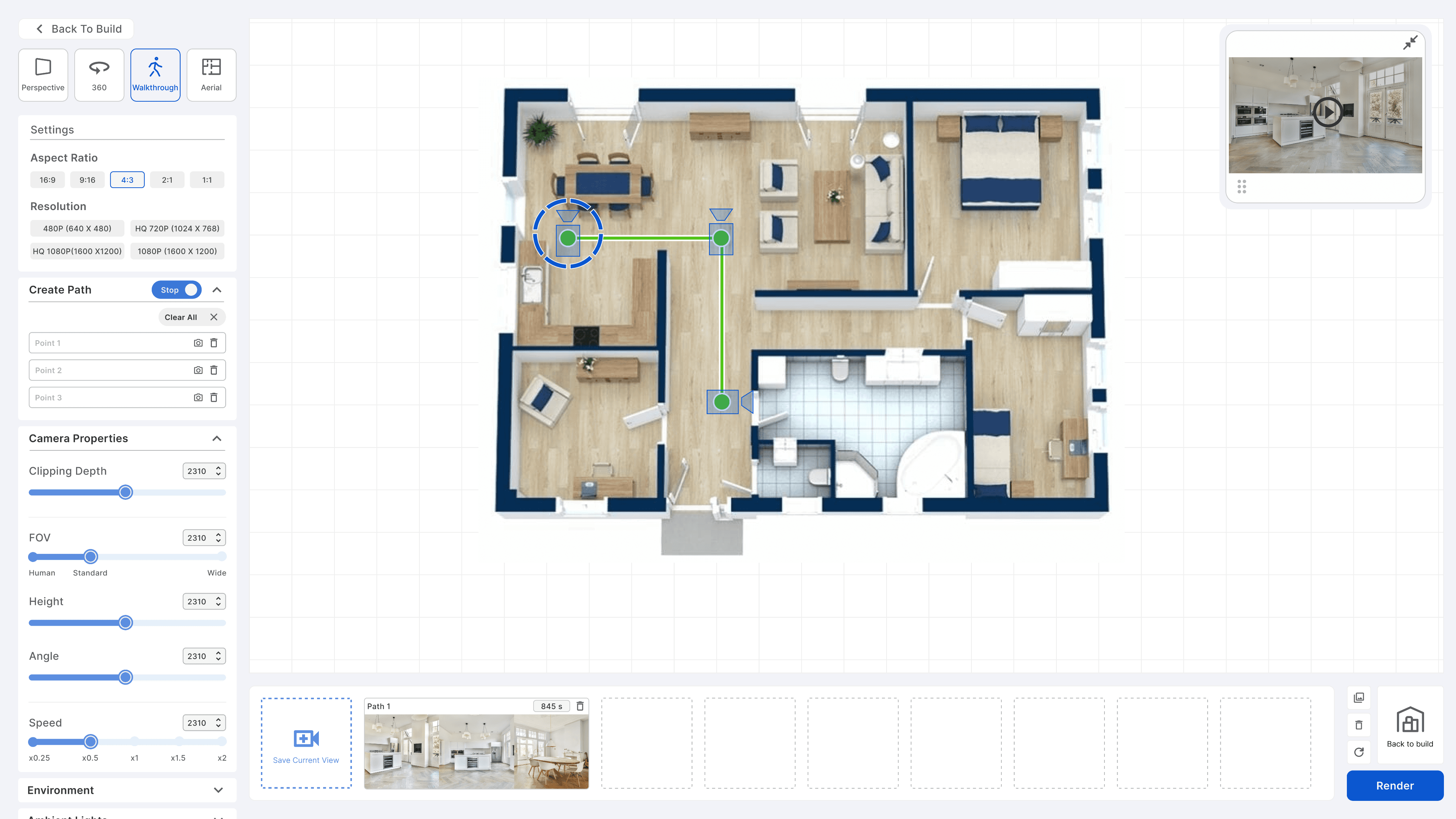
Walkthrough
Walkthrough


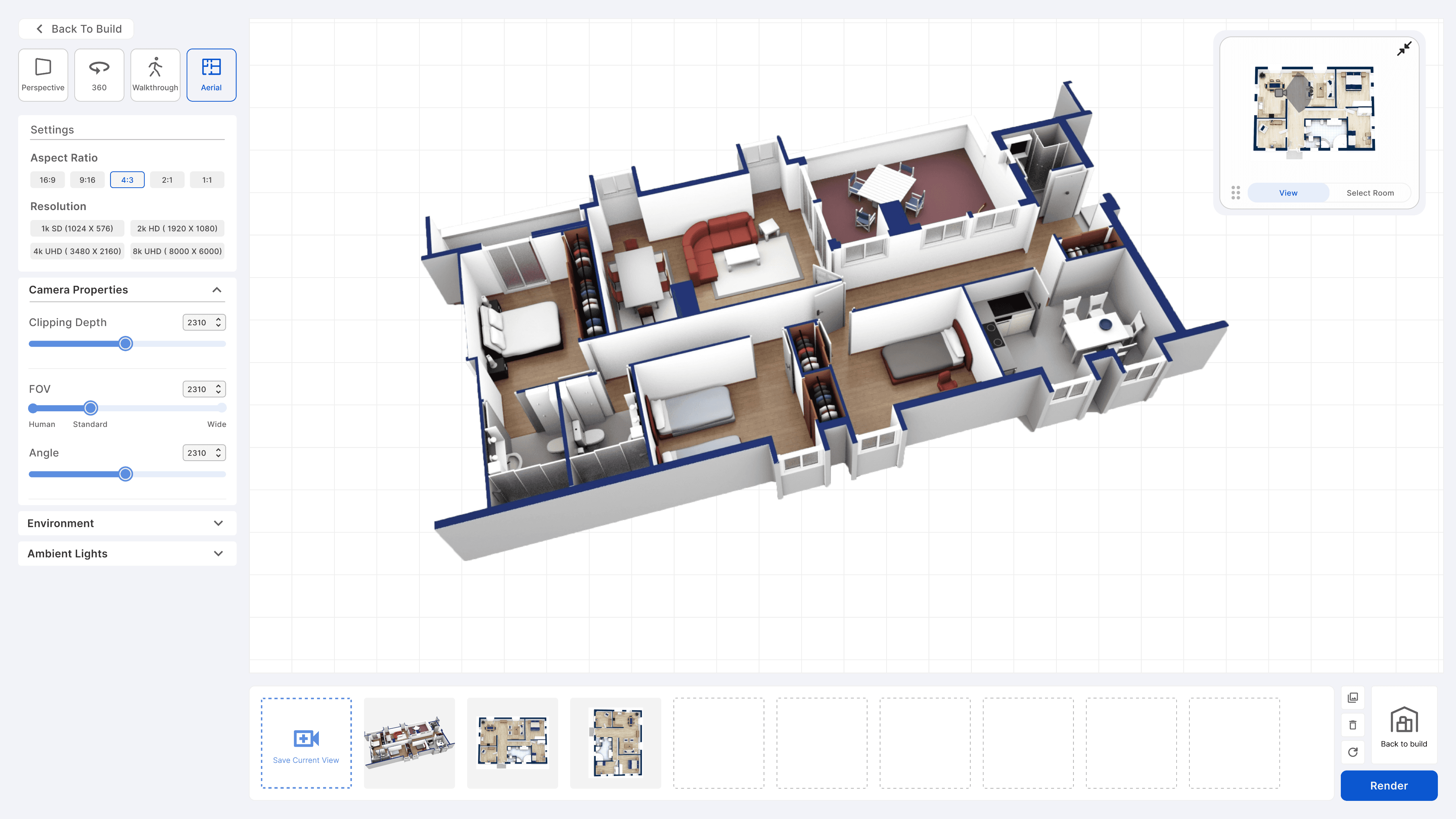
Aerial
Aerial
The final Changes
By unifying the diverse rendering types into a cohesive user flow, differentiated only by settings, I aim to promote intuitive navigation, reduce the learning curve, and offer seamlessly switchable, consistent interfaces, thereby elevating the overall user experience.
New changes only


Perspective - Final Updated Flow
INTERACTIVE
New changes only


Panorama - Final Updated Flow
INTERACTIVE
New changes only


Walkthrough - Final Updated Flow
INTERACTIVE
New changes only


Aerial - Final Updated Flow
INTERACTIVE
New changes only


Perspective - Final Updated Flow
INTERACTIVE
New changes only


Panorama - Final Updated Flow
INTERACTIVE
New changes only


Walkthrough - Final Updated Flow
INTERACTIVE
New changes only


Aerial - Final Updated Flow
INTERACTIVE
New changes only


Perspective - Final Updated Flow
INTERACTIVE
New changes only


Panorama - Final Updated Flow
INTERACTIVE
New changes only


Walkthrough - Final Updated Flow
INTERACTIVE
New changes only


Aerial - Final Updated Flow
INTERACTIVE
New changes only


Perspective - Final Updated Flow
INTERACTIVE
New changes only


Panorama - Final Updated Flow
INTERACTIVE
New changes only


Walkthrough - Final Updated Flow
INTERACTIVE
New changes only


Aerial - Final Updated Flow
INTERACTIVE
INTERACTIONS
The Different interactions
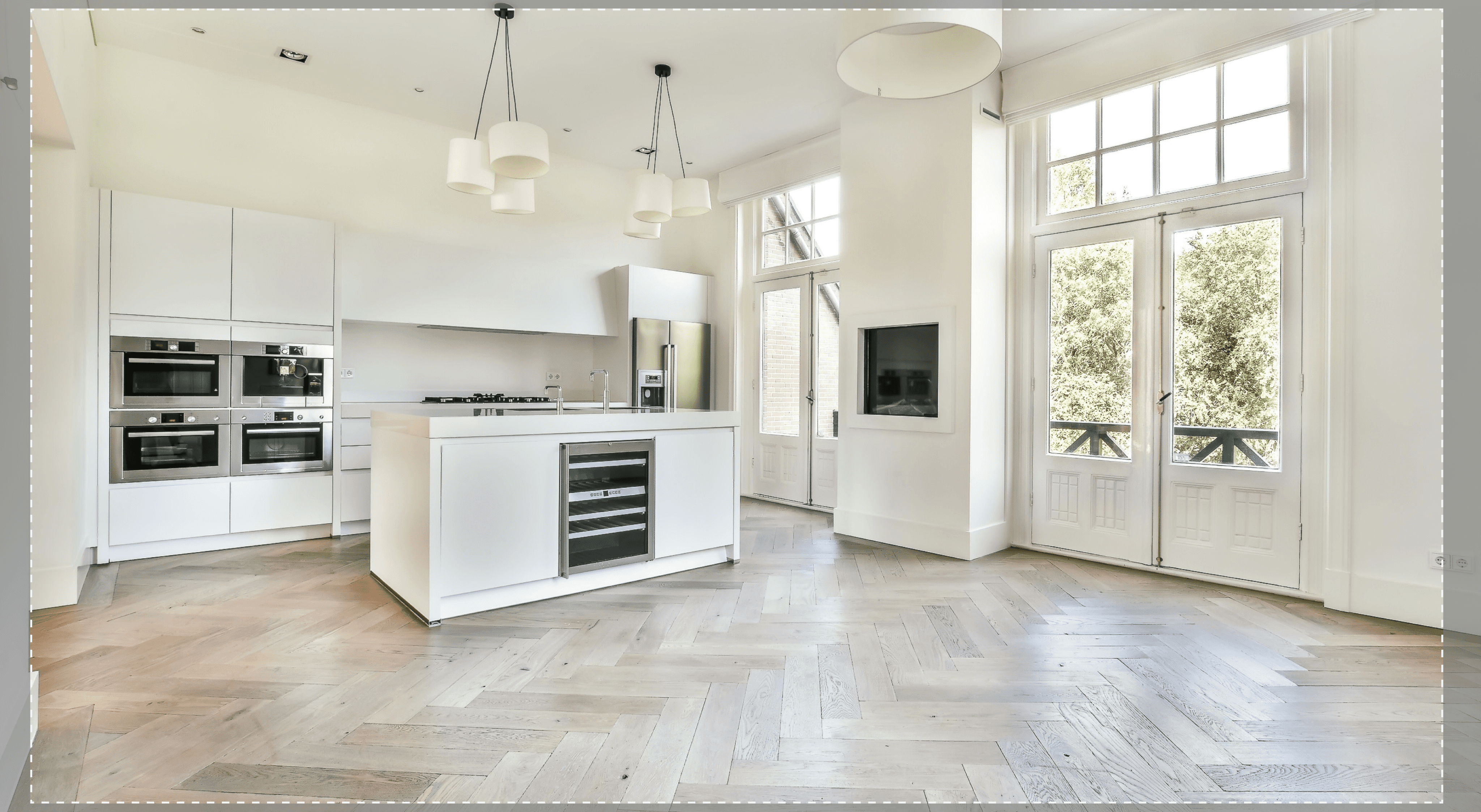
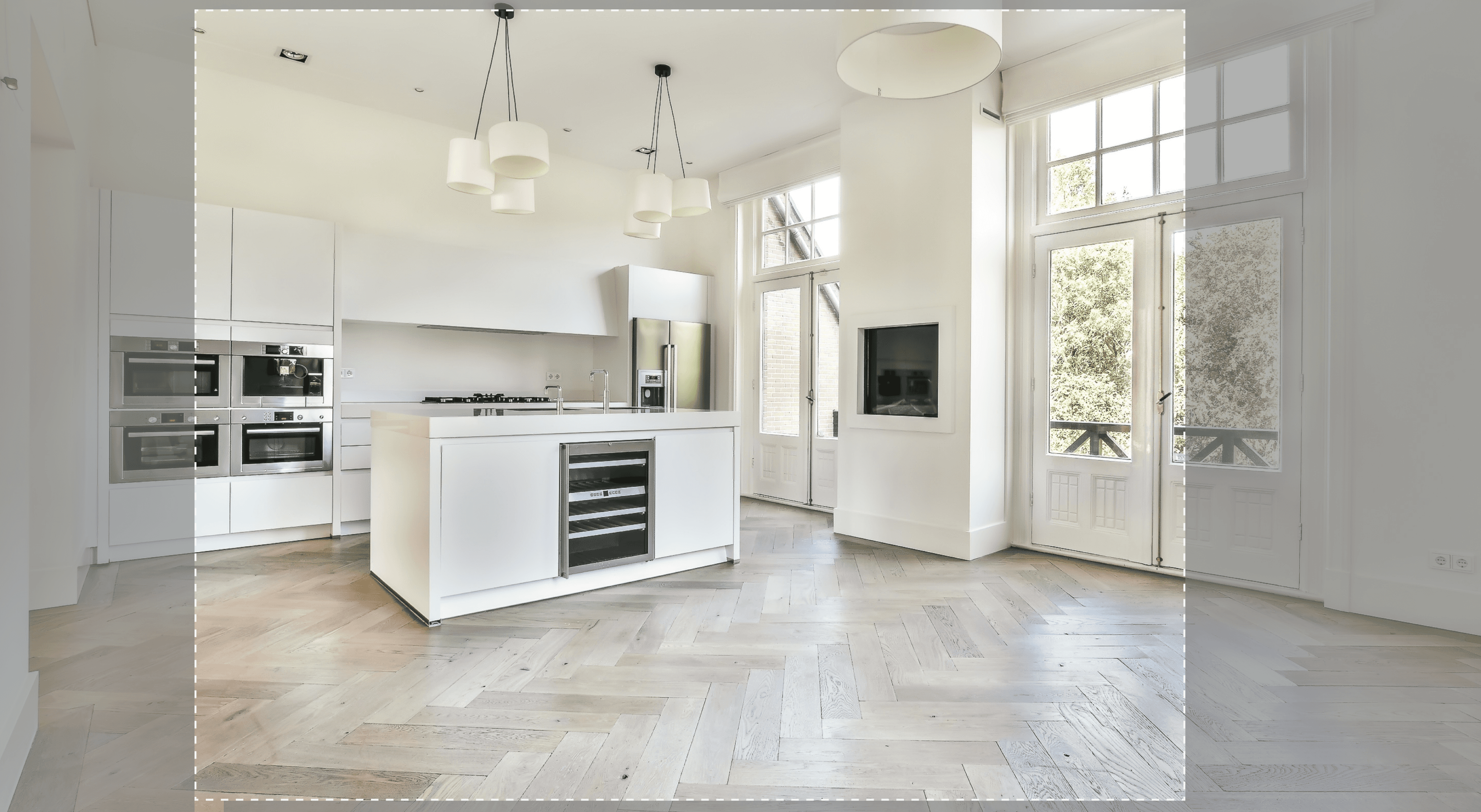
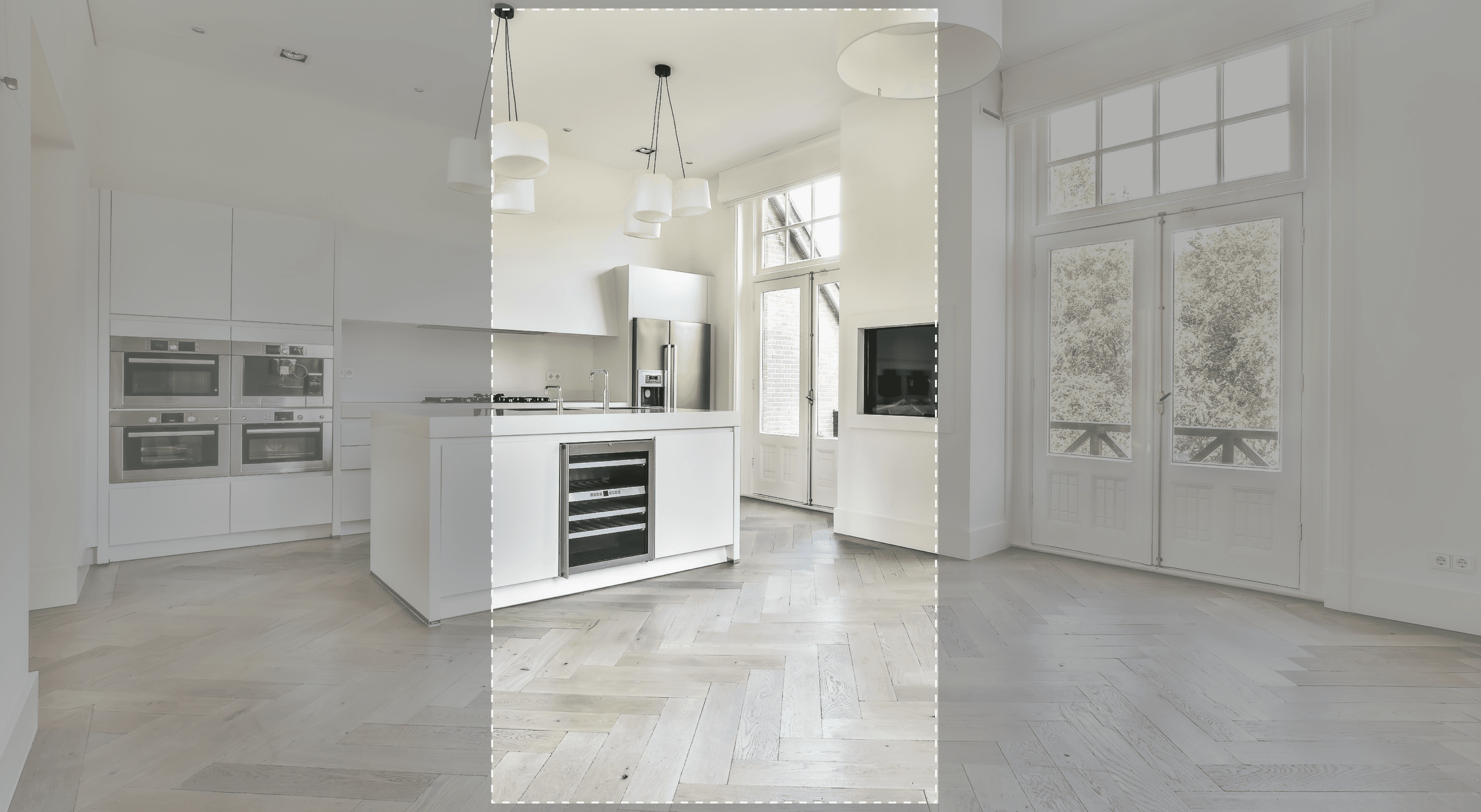
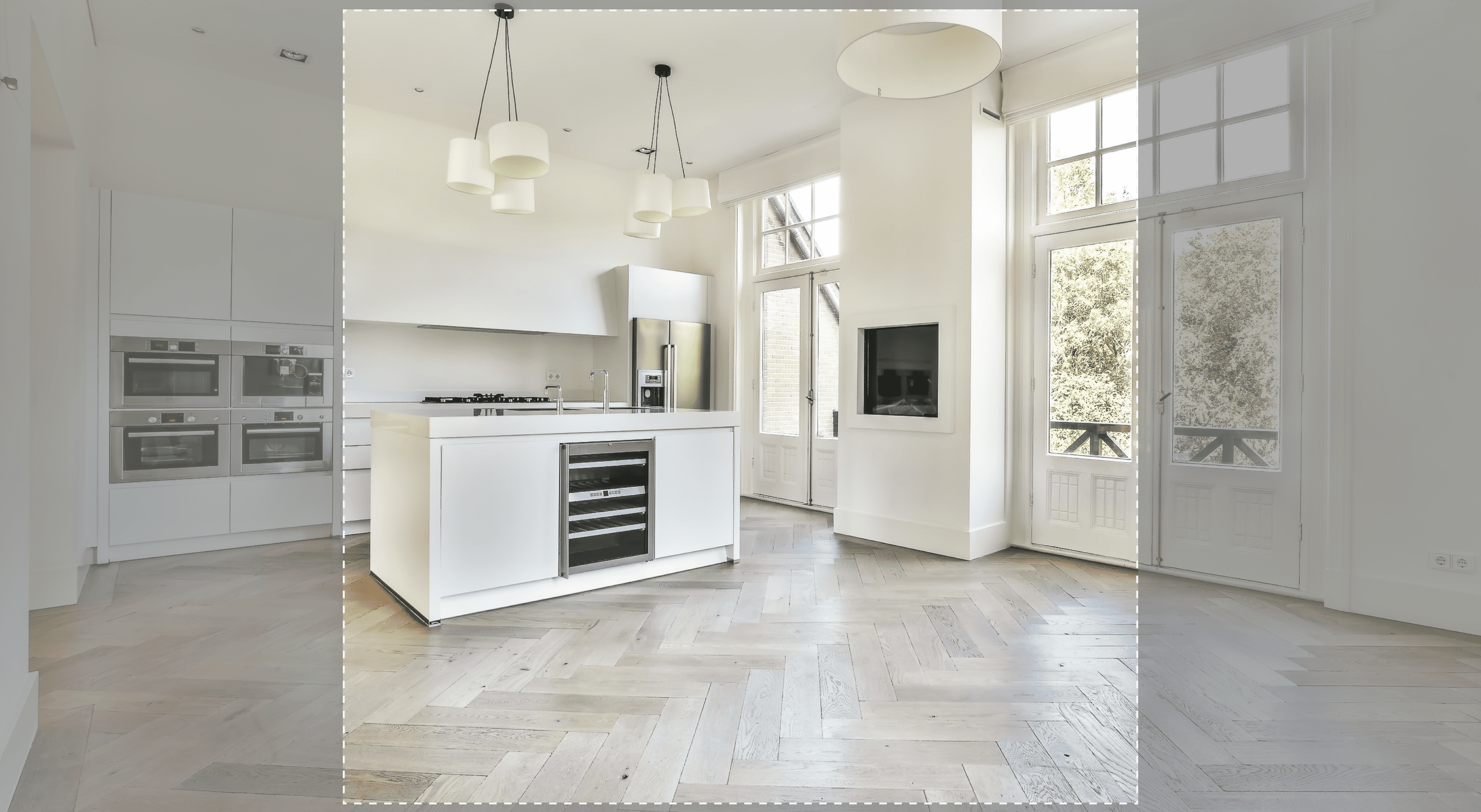
Aspect Ratio
Incorporating an interactive overlay for selected aspect ratios enhances the user experience by offering a visual representation of the chosen dimensions.
Aspect Ratio
VIDEO LOOP
Aspect Ratio
Incorporating an interactive overlay for selected aspect ratios enhances the user experience by offering a visual representation of the chosen dimensions.


Aspect Ratio
VIDEO LOOP
Aspect Ratio
Incorporating an interactive overlay for selected aspect ratios enhances the user experience by offering a visual representation of the chosen dimensions.


Aspect Ratio
VIDEO LOOP
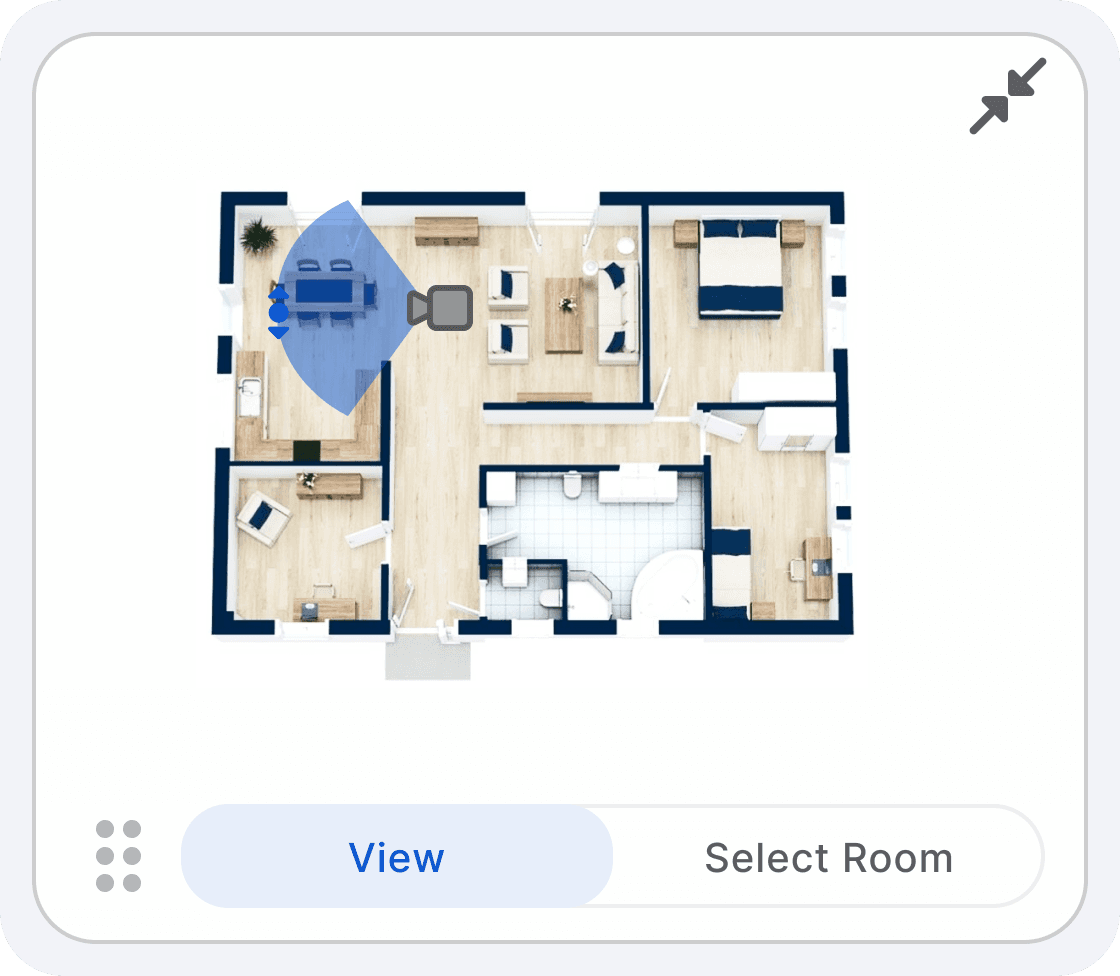
View ports
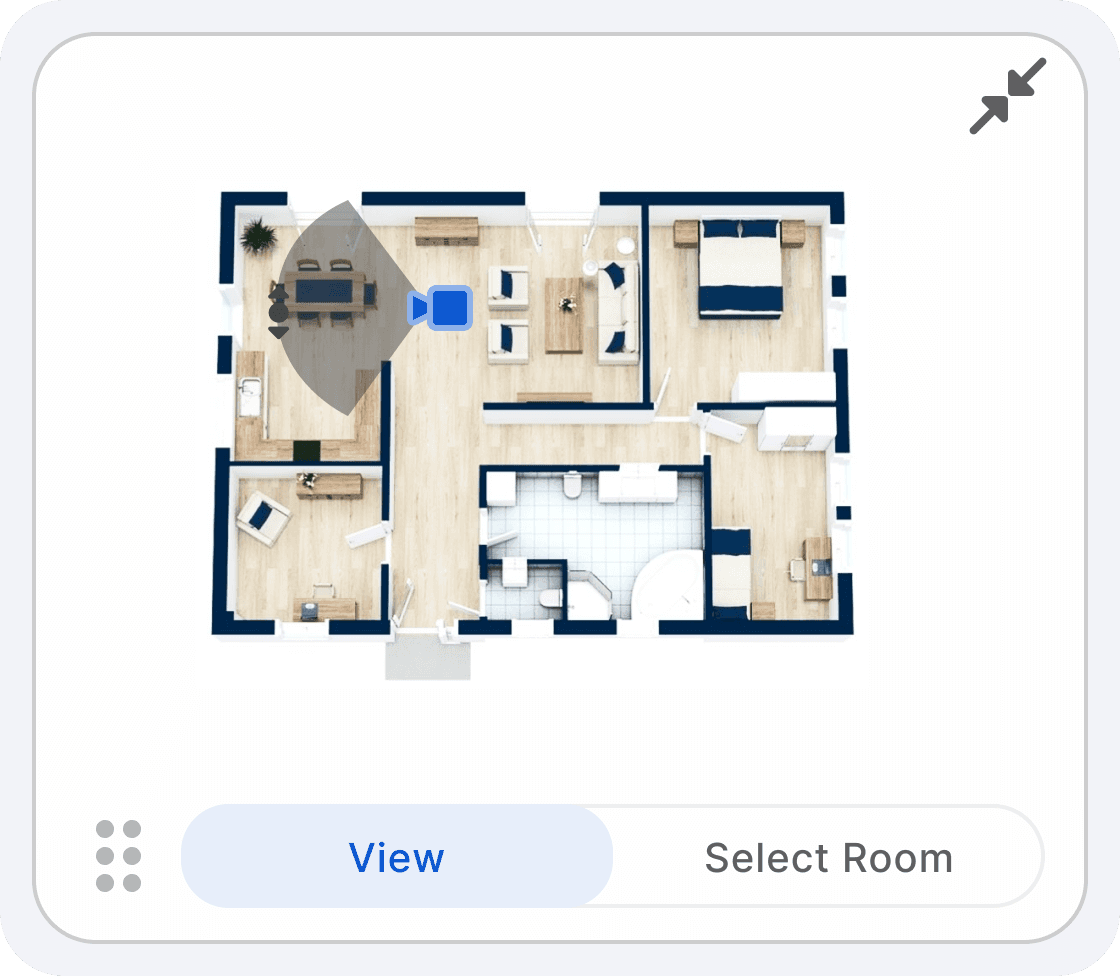
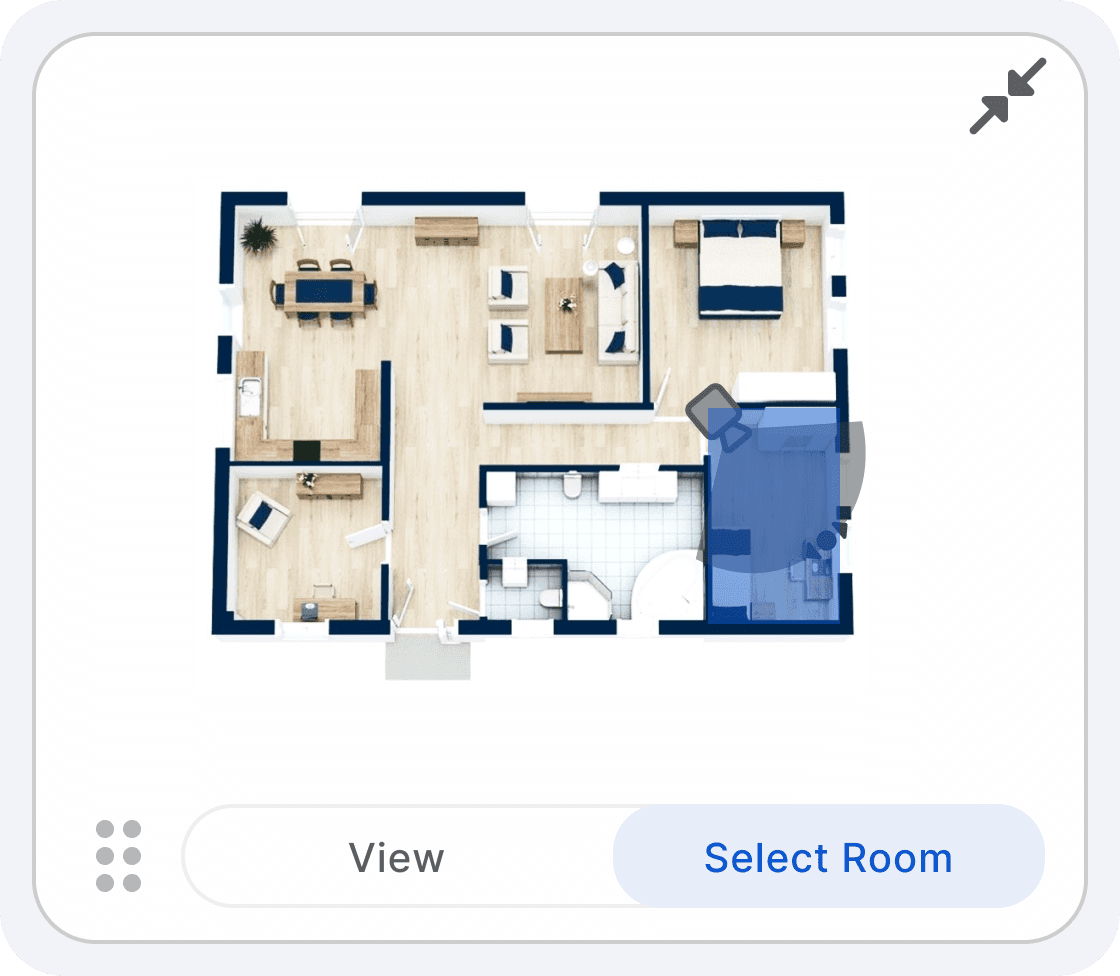
The viewport feature simplifies how users interact with 3D and 2D space planning. It allows users to easily visualize and select specific areas in their design.
The "View" option lets users adjust the camera angle quickly. The "Select Room" function provides a fast way to choose which room to focus on. Enhancements to the viewport make the design process more interactive and user-centric, helping users to better visualize their plans.
View Ports
VIDEO LOOP
View ports
The viewport feature simplifies how users interact with 3D and 2D space planning. It allows users to easily visualize and select specific areas in their design.
The "View" option lets users adjust the camera angle quickly. The "Select Room" function provides a fast way to choose which room to focus on. Enhancements to the viewport make the design process more interactive and user-centric, helping users to better visualize their plans.


View Ports
VIDEO LOOP
View ports
The viewport feature simplifies how users interact with 3D and 2D space planning. It allows users to easily visualize and select specific areas in their design.
The "View" option lets users adjust the camera angle quickly. The "Select Room" function provides a fast way to choose which room to focus on. Enhancements to the viewport make the design process more interactive and user-centric, helping users to better visualize their plans.


View Ports
VIDEO LOOP
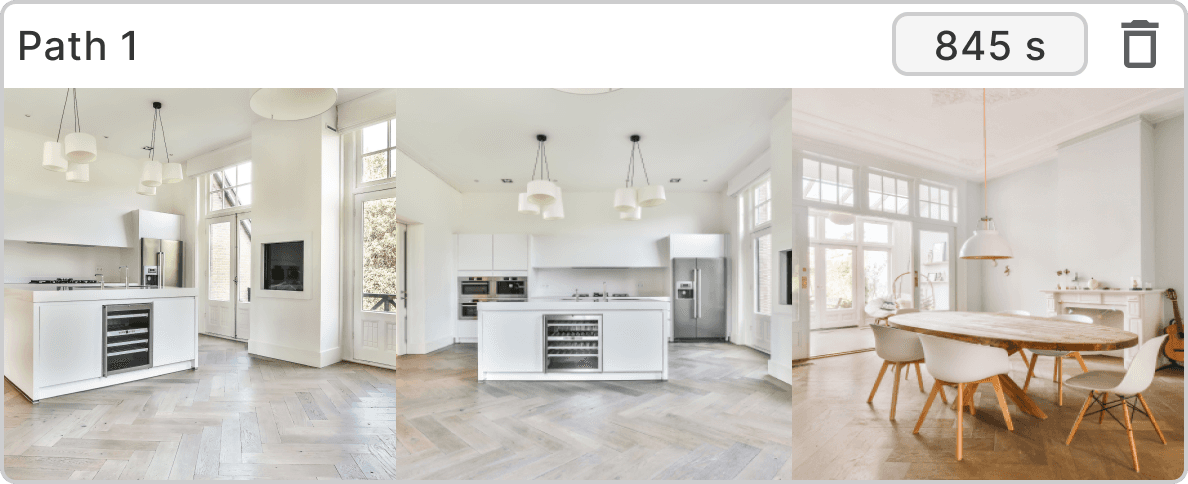
Save Views
The 'Save Views' feature in the walkthrough module enhances navigational efficiency by saving important views.
When users save a view, it helps them remember where they started.. Clicking on a saved view intuitively guides users by highlighting its location in the larger design space, simplifying the journey across different visual perspectives."


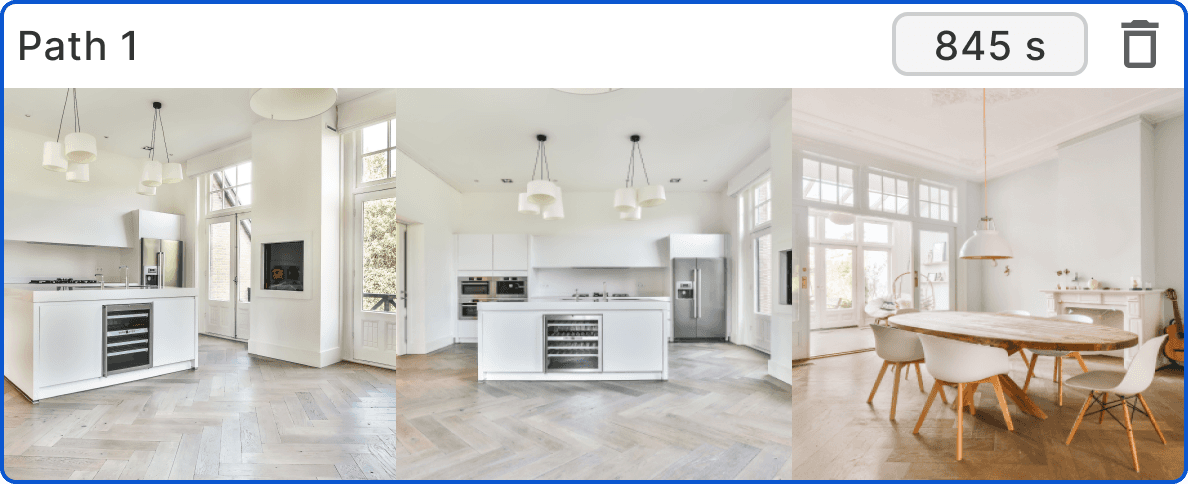
Save Views
VIDEO LOOP
Save Views
The 'Save Views' feature in the walkthrough module enhances navigational efficiency by saving important views.
When users save a view, it helps them remember where they started.. Clicking on a saved view intuitively guides users by highlighting its location in the larger design space, simplifying the journey across different visual perspectives."


Save Views
VIDEO LOOP
Save Views
The 'Save Views' feature in the walkthrough module enhances navigational efficiency by saving important views.
When users save a view, it helps them remember where they started.. Clicking on a saved view intuitively guides users by highlighting its location in the larger design space, simplifying the journey across different visual perspectives."


Save Views
VIDEO LOOP
FINAL SCREENS
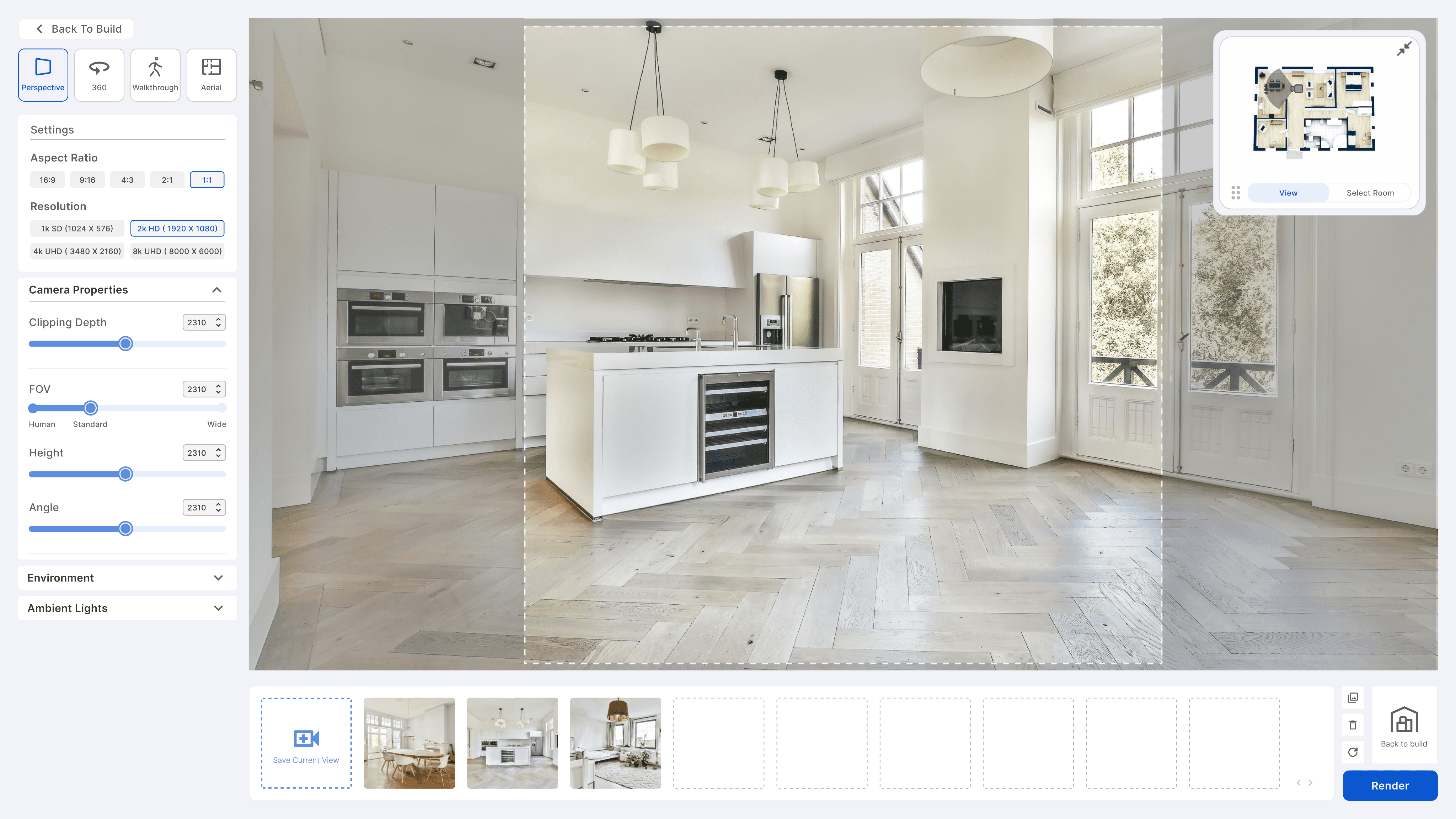
An effortless experience
Finishing touches from the internal
usability testing
Finishing touches from the internal
usability testing
There were no major usability issues that came from our round of internal testing. In fact, over 89% of our internal testers had successfully completed the journeys and found the update process to be easy and user friendly.
This meant that I could direct my focus on addressing feedback for a couple of edge cases.*
There were no major usability issues that came from our round of internal testing. In fact, over 89% of our internal testers had successfully completed the journeys and found the update process to be easy and user friendly.
This meant that I could direct my focus on addressing feedback for a couple of edge cases.*


Perspective
IMAGE


Walkthrough
IMAGE


Aerial
IMAGE
Project Takeaways
Finding opportunities within constraints
Viewing constraints from different perspectives helped brew new approaches to tackle other constraints.
Leveraging existing resources
Design resources at Google were unlimited — knowing where to find them and when to use them saved immense time and overhead.
Cross-functional partners should be involved from the start
It ensured that the project was progressing holistically — effectively accounting for content strategy and technical feasibility early.

Simplicity was about reducing complexity, not quantity
If an added extra step led to a more intuitive and error-free experience, it was worth the additional manual effort